Seedream V4 Sequential Edit: One Brief, Every Frame in the Series
ByteDance's set-level editor applies a single instruction across a related image series — holding identity, palette, and typography constant while every frame changes together.
An editing model for step-by-step refinement through a sequence of guided changes.
Enable
Enable
Enable
Your generated image will appear here.
Enter a prompt and click 'Generate' — or start from an example:
Examples
Seedream V4 Sequential Edit before and after examples
Drag the handle to compare each source and result, or open the viewer for a closer look.
BeforeAfter
Sequential image editing
Speaker concept into a home scene
Prompt: Place the transparent pebble speaker on a light oak sideboard in a sunlit living room, a small potted olive tree beside it, sheer curtains glowing behind. Keep the speaker's shape, transparency, internal drivers, and LED ring exactly as in the concept render, with a realistic contact shadow on the wood.
BeforeAfter
Sequential image editing
Evening relight of the same scene
Prompt: Relight this living room scene as evening: the LED ring inside the speaker glowing warmly, a table lamp pooling soft light on the sideboard, the window gone deep blue, gentle reflections on the wood. Keep the speaker, the olive tree, the sideboard, and the camera angle exactly the same.
BeforeAfter
Sequential image editing
Headshot to autumn outdoor portrait
Prompt: Change the charcoal blazer to an oatmeal knit sweater and move the woman into a quiet autumn park with soft blurred amber foliage behind her and gentle overcast light. Keep her face, hairstyle, skin tone, and smile exactly the same.
BeforeAfter
Sequential image editing
Golden-hour pass with falling leaves
Prompt: Warm this autumn park portrait to golden hour: low sun flaring softly through the foliage behind her, a few leaves drifting in the air, richer amber tones, a gentle rim light on her hair. Keep her face, sweater, pose, and the framing exactly the same.
BeforeAfter
Sequential image editing
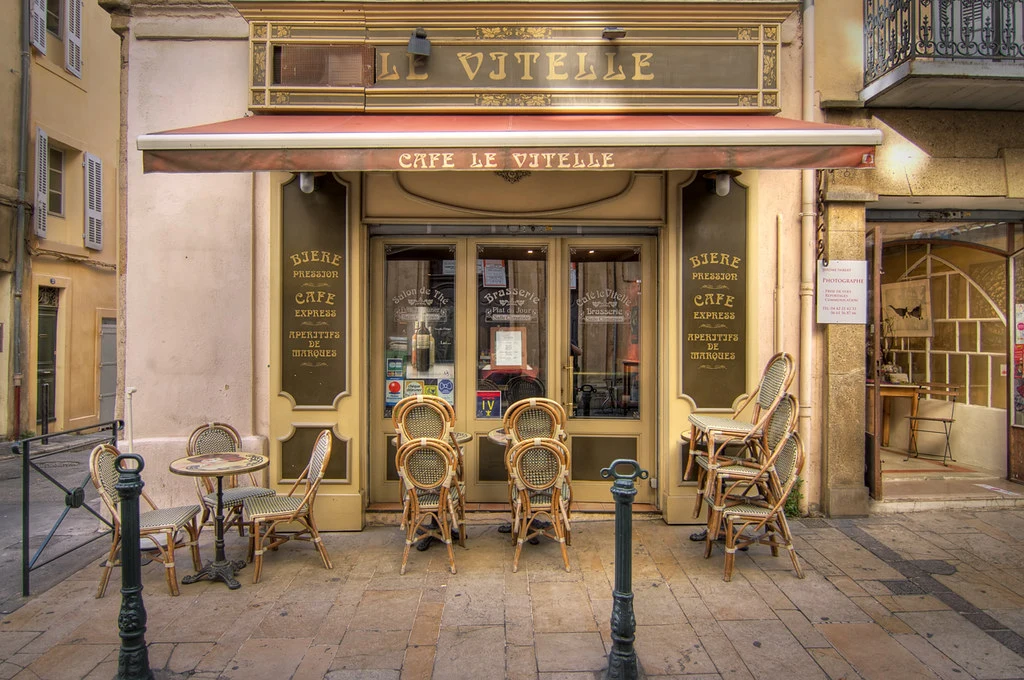
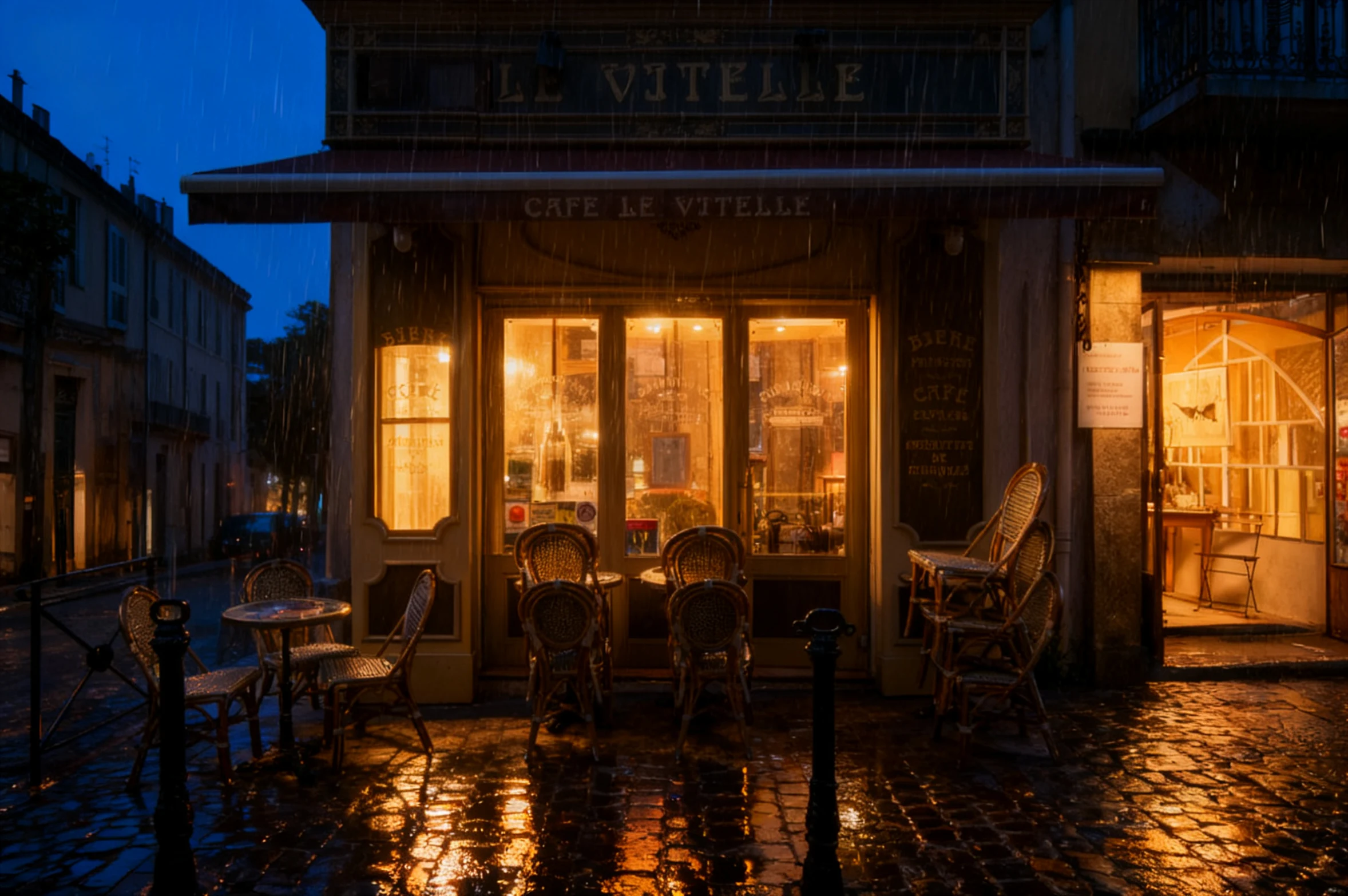
Café exterior to rainy dusk
Prompt: Change this daytime café exterior to a rainy dusk: warm light spilling from the windows, wet cobblestones reflecting the storefront, a deep blue evening sky, light rain streaks. Keep the building architecture, the rattan chairs, the window positions, and the street layout exactly the same.
Source: decar66 — CC-BY 2.0 via Flickr.
BeforeAfter
Sequential image editing
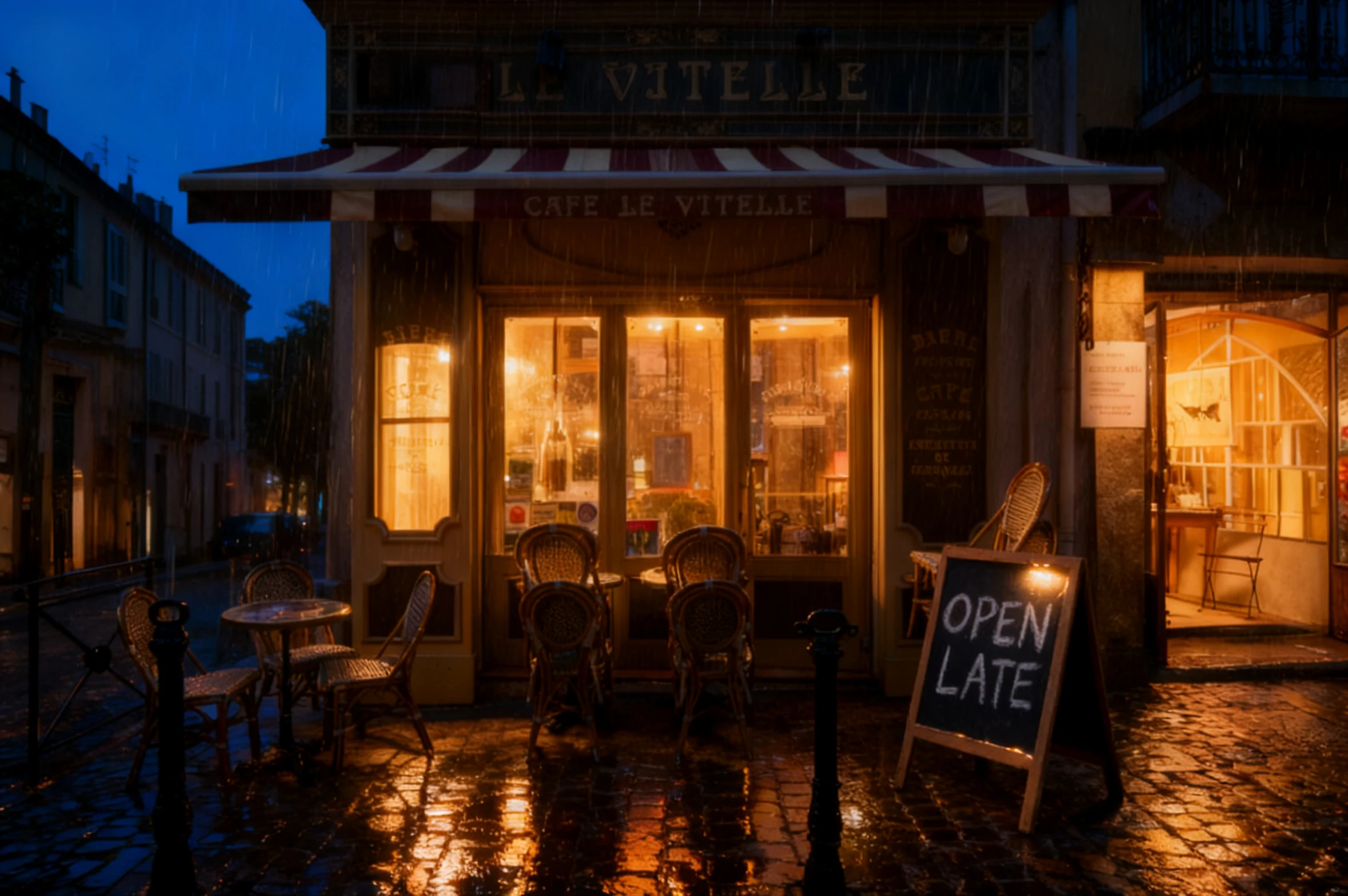
Add branded signage details
Prompt: Add a striped burgundy-and-cream awning over the café windows and a small A-frame chalkboard sign on the wet pavement reading "OPEN LATE" in hand-lettered white chalk, its edges catching the window light. Keep the rainy dusk mood, the reflections, the architecture, and everything else exactly the same.
Source: decar66 — CC-BY 2.0 via Flickr.
BeforeAfter
·
What does editing "sequentially" actually mean?
Seedream V4 Sequential Edit is the set-level member of ByteDance's Seedream V4 editing family. Where a standard editor changes one image per run, the sequential workflow takes a related series — product angles, storyboard panels, campaign frames — and applies one edit across the set, locking the things that make the series a series: the person's identity, the palette, the typographic treatment.
On RenderFlow AI, the canvas accepts up to four reference frames and renders at any size from 1024 to 4096 pixels per side (2048 default), at 5 credits per image. State in the prompt how many edited outputs you expect — the workflow uses that count to produce the set.
When editing frames one by one stops making sense
Consistency is the product. Anyone can edit one frame; Sequential Edit's value is that frame four still matches frame one — same model, same lighting logic, same grade — after the change. Campaign sets and storyboard sequences live or die on exactly that.
Consistency is the product. Anyone can edit one frame; Sequential Edit's value is that frame four still matches frame one — same model, same lighting logic, same grade — after the change. Campaign sets and storyboard sequences live or die on exactly that.
One brief replaces a dozen repetitions. Applying an autumn grade or a new background to every panel of a lookbook is a single instruction here, not twelve separate edits with twelve chances to drift. The time saved is real; the consistency saved is worth more.
One brief replaces a dozen repetitions. Applying an autumn grade or a new background to every panel of a lookbook is a single instruction here, not twelve separate edits with twelve chances to drift. The time saved is real; the consistency saved is worth more.
Series-scale canvases. Each output can render from 1024 up to 4096 pixels per side, so a retouched series goes straight to catalog grids or hero slots without an upscaling step between the edit and the placement.
Series-scale canvases. Each output can render from 1024 up to 4096 pixels per side, so a retouched series goes straight to catalog grids or hero slots without an upscaling step between the edit and the placement.
References anchor the set's identity. Up to four input frames give the model concrete evidence of who the person is and what the products look like, which is what keeps outputs recognizable as the same series rather than four strangers.
References anchor the set's identity. Up to four input frames give the model concrete evidence of who the person is and what the products look like, which is what keeps outputs recognizable as the same series rather than four strangers.
Series work Seedream V4 Sequential Edit was made for
Multi-image editing
Campaign asset variation
Product scene updates
Sequential visual edits
Editing a whole set with Seedream V4 Sequential Edit
Gather the frames that make the set
Upload up to four images from the series — product angles, storyboard panels, campaign shots. Consistent source quality matters: the workflow preserves what it is given, so mixed-resolution or mismatched lighting in the inputs follows you into the outputs.
Write one instruction for the whole series
Phrase the edit as a set-level brief and state the output count: "apply this autumn color grade across all 4 panels, keep the model's pose and the logo placement." Naming the number of edited results you expect helps the workflow return the complete set.
List what must not drift
Call out the anchors explicitly — identity, palette, typography, logo position — because holding them constant across outputs is the job this model exists to do. Whatever the instruction does not protect is free to vary.
Size the outputs for their final grid
Width and height set independently from 1024 to 4096 pixels (2048×2048 default). Match the series' destination — a catalog grid, a carousel, a storyboard deck — so every panel arrives placement-ready at the same dimensions.
Retouch single frames elsewhere
If only one frame needs work, or every frame needs a different edit, the sequential workflow is the wrong tool — use Seedream V4 Edit for the lone hero or SeedEdit V3 for a quick repair, and come back when the whole set moves together.
Frequently Asked Questions
How is Seedream V4 Sequential Edit different from Seedream V4 Edit?
Seedream V4 Edit retouches individual frames with a Max Images variation control; Sequential Edit is purpose-built for related sets, applying one instruction across a series while locking identity, palette, and style from frame to frame. Same family, same 5-credit price — different unit of work.
How many images can I edit in one run?
The canvas accepts up to four reference frames, and the prompt should state how many edited outputs you expect — for example, "generate 4 edited panels." The workflow uses that count to produce the complete set in one pass.
Will the same person or product stay consistent across every output?
That is the design goal: identity, lighting logic, and palette are held constant across the series. Give the model clean, mutually consistent references, and still review each panel — heavy scene changes can introduce small drifts worth a second pass.
What output sizes does the sequential workflow support?
Width and height set independently from 1024 to 4096 pixels, defaulting to 2048×2048. Series usually pick one dimension set for the whole run so the panels drop straight into a grid or carousel.
When is a series edit the wrong tool?
When only one frame needs attention, or when each frame needs a different change. Sequential Edit shines when the set moves together; for one-off hero retouching use Seedream V4 Edit, and for quick repairs use SeedEdit V3.
What makes a good source set for Sequential Edit?
Frames that already belong together: the same subject from different angles, panels of one campaign, or shots from one session with matched lighting. The workflow preserves and propagates what it sees, so consistency in the inputs is the cheapest consistency in the outputs.