Kling AI Video Generator Guide: Kling 3.0 Prompts (2026)
Learn how to use the Kling AI video generator for text-to-video and image-to-video, with Kling 3.0 examples, prompts, pricing, and free access.
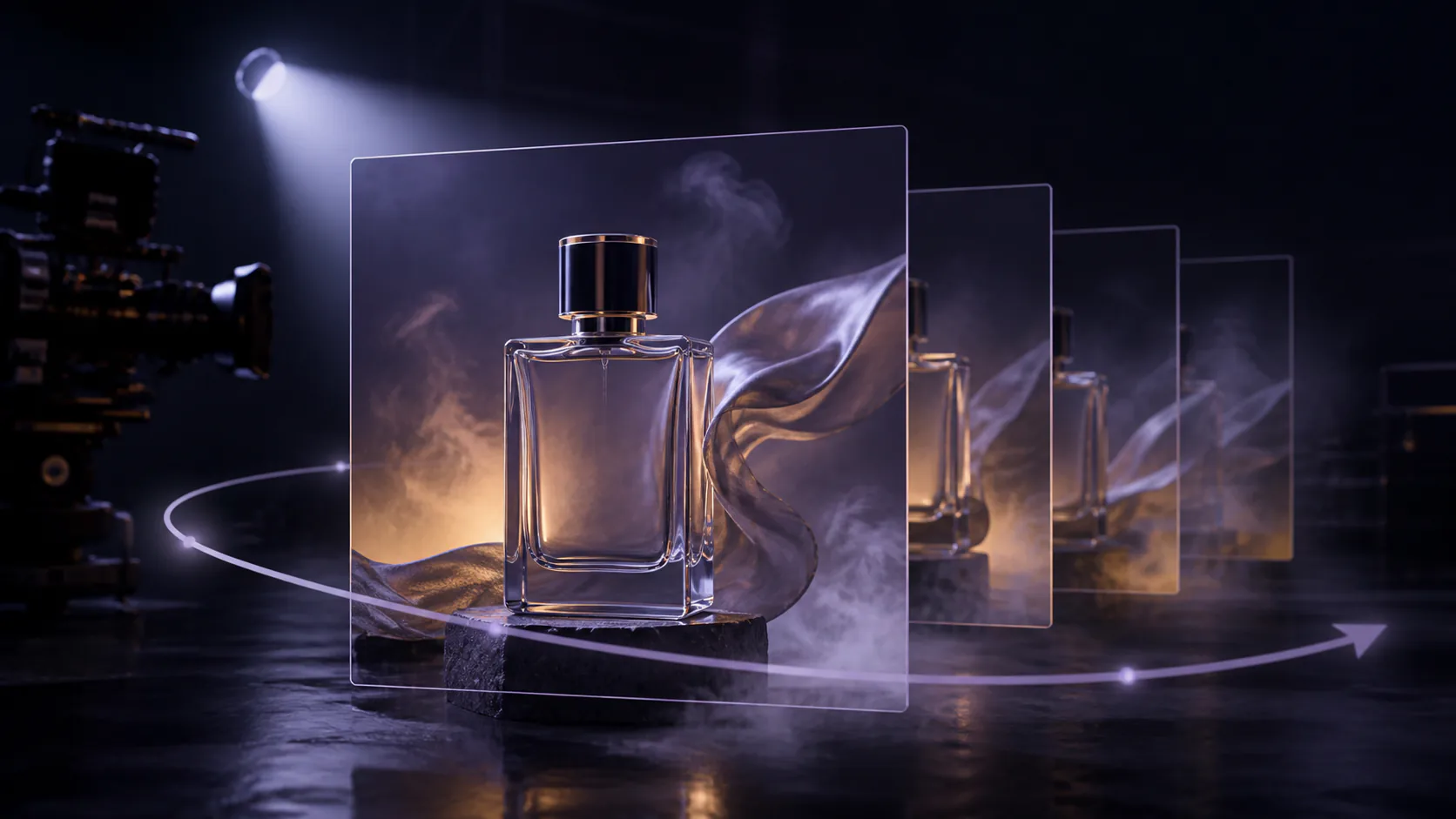
The Kling AI video generator is most useful when a short clip has one clear piece of motion. Use Kling 3.0 text-to-video to invent a shot from words; use Kling AI image-to-video when a product photo, portrait, or generated keyframe already defines the composition. In either mode, describe the action and camera in sequence, protect the details that must not change, and test the shortest practical clip first.
This guide covers the questions people actually ask about Kling AI in 2026: what Kling 3.0 does, how to use it, how free access and pricing work, how to write Kling AI prompts, and when image-to-video is safer than text-to-video. It also includes real RenderFlow examples and the exact prompts behind them.
Open the Kling AI video generator →
Kling AI video generator: quick answer
| Question | Practical answer |
|---|---|
| What is Kling AI? | Kuaishou’s family of generative image and video models and products |
| Current family | Kling 3.0, including Video 3.0 and Video 3.0 Omni |
| Main workflows | Text-to-video, image-to-video, references, and video editing on supported endpoints |
| Official maximum duration | Up to 15 seconds for Kling Video 3.0; hosted integrations may expose different limits |
| Best starting mode | Image-to-video for visual control; text-to-video for fast scene exploration |
| Is Kling AI free? | Some platforms offer limited credits; it is not an unlimited free generator |
| Best prompt pattern | Subject + action + camera + environment + timing + constraints |
What is Kling AI?
Kling AI is developed by Kuaishou Technology. Kuaishou announced the Kling AI 3.0 family on February 5, 2026, including Video 3.0, Video 3.0 Omni, Image 3.0, and Image 3.0 Omni. The company’s official Kling 3.0 announcement describes multimodal input and output, stronger consistency, native audio, and video generation up to 15 seconds.
The phrase “Kling AI video generator” can refer to two different things:
- Kling’s official app, which exposes the provider’s own plans and product features.
- A hosted Kling model, such as the Kling endpoints available through RenderFlow AI, where settings and cost belong to that specific integration.
This distinction matters. A capability announced for the full Kling 3.0 family is not automatically present in every API endpoint or third-party UI. Always use the duration, resolution, audio, and credit controls shown beside the exact model you selected.
Kling 3.0 vs older Kling models
The old version of this article called Kling 2.1 the newest model. That is no longer true. Kling 3.0 is the relevant family for a current guide, while Kling v2.5 Turbo Pro remains useful on RenderFlow AI for a predictable 720p, 5-or-10-second workflow at 35 credits per five seconds.
| Model or family | What it adds | When to choose it |
|---|---|---|
| Kling 3.0 family | Native audiovisual generation, stronger consistency, multimodal controls, and official durations up to 15 seconds | Current creative work, richer narratives, and the latest Kling capabilities |
| Kling 3.0 text-to-video on RenderFlow | Fast kinetic drafts from prompts | Action, product reveals, fantasy moments, and scenes without an approved keyframe |
| Kling 3.0 image-to-video on RenderFlow | Motion anchored to an uploaded still | Products, people, animals, landscapes, and campaign frames that must preserve composition |
| Kling v2.5 Turbo Pro | Documented 5/10-second, 720p text or image workflows | A simpler known-cost pass or compatibility with an existing v2.5 workflow |
Kling 3.0 does not make every shot easy. Crowded choreography, fast anatomy, exact brand marks, long dialogue, and extreme camera changes can still fail. Treat each generated clip as a draft that requires frame-by-frame review.
How to use Kling AI on RenderFlow
You do not need a separate Kling account when using Kling through RenderFlow AI. The generation runs inside the AI video generator, and the live canvas shows the controls and credit requirement for the selected model.
1. Choose text-to-video or image-to-video
Use Kling 3.0 text-to-video when you are exploring a new scene and do not care about preserving an exact first frame. Use Kling AI image-to-video when the product, character, lighting, or composition is already approved.
If brand or character consistency matters, a strong keyframe usually saves more time than repeatedly asking text-to-video to rediscover the same design.
2. Pick the placement before prompting
Decide whether the clip is for a 16:9 page or YouTube frame, a 9:16 Reel or Short, or a square placement. Motion reads differently in each frame. A rider can travel laterally through widescreen; a vertical product shot benefits from depth, rising mist, or a controlled orbit.
Use only settings shown for the selected Kling AI model. Do not assume a duration or resolution from a review of another platform.
3. Write one dominant action
A reliable Kling AI prompt answers six questions:
- Subject: who or what is visible?
- Action: what changes during the clip?
- Camera: does it follow, orbit, push, pan, or remain fixed?
- Environment: what moves in the world around the subject?
- Timing: what happens first, next, and at the end?
- Constraints: what must remain stable or never appear?
For a short draft, one action with a beginning and an end is enough. A prompt that asks for a chase, transformation, dialogue scene, explosion, and product reveal in five seconds gives the model no clean priority.
4. Generate the shortest useful test
The cheapest informative draft is usually a short clip. You are testing whether the subject has weight, whether feet or wheels contact the surface, whether the camera move is readable, and whether the subject survives until the final frame. Longer duration only compounds a bad motion plan.
5. Review in the right order
Judge the Kling AI video in this order:
- subject identity and anatomy;
- contact, weight, and object permanence;
- camera continuity and unwanted cuts;
- product shape, text, and brand details;
- lighting, color, and overall mood.
Fix the first structural failure before polishing color. Change one variable for the next run so you learn which instruction helped.
A Kling 3.0 text-to-video example
This RenderFlow example tests body balance, wheel contact, fabric motion, parallax, and a camera that changes position without cutting.
Exact longboard prompt
A cinematic follow shot of an adult longboard rider carving down a closed mountain road at sunrise. From 0s to 2s: the camera follows low behind as the rider leans into a left curve, wheels gripping the asphalt and jacket fabric moving naturally in the wind. From 2s to 4s: the camera sweeps alongside while the rider transitions smoothly into a right carve, pine trees and guardrail producing strong parallax. From 4s to 5s: the road opens to a wide valley view and the camera rises slightly as the rider straightens. One continuous stabilized shot, realistic board contact and body balance, no traffic, no cuts, no floating or sliding.Why this Kling AI prompt works:
- It uses one continuous action rather than a miniature screenplay.
- Each time range gives the model a visible beat.
- “Wheels gripping the asphalt” defines the physical contact to protect.
- “No cuts, no floating or sliding” names the most damaging failure modes.
- The camera move supports the action instead of competing with it.
A Kling AI image-to-video example
Image-to-video begins with a visual contract: the source image owns the subject, composition, palette, and first frame. The prompt should spend most of its words on motion and preservation.
Exact coastal image-to-video prompt
Animate this coastal cliff photograph into a cinematic aerial shot with realistic ocean motion. From 0s to 4s: the camera pushes slowly forward toward the sea stack, waves rolling in from the horizon and breaking white against the rocks, the sound of surf building gradually. From 4s to 7s: a larger swell crashes over the foreground rock ledge, spray bursting upward and blowing sideways in the wind, a few gulls crossing the frame and crying faintly. From 7s to 10s: the camera continues gliding past the sea stack, revealing more of the lighthouse headland, the wave patterns shimmering under the pale light, wind and distant surf underneath. A sparse cinematic score of slow strings and soft piano swells gently as the big wave crashes, then settles back with the camera. One continuous shot, no cuts, photorealistic water motion, natural coastal ambience.The prompt does not waste space redescribing every pixel in the still. It directs the forward camera, wave sequence, spray, birds, audio, and the final reveal. This is the central habit for Kling AI image-to-video: protect the frame, prompt the motion.
Kling AI prompt formula and reusable templates
Use this base structure:
[Shot and subject]. From [time] to [time]: [first action and camera].
From [time] to [time]: [second beat]. [Lighting and environment].
[Physical and identity constraints]. [No cuts or unwanted changes].
Product video prompt
A premium vertical product shot of an unbranded clear glass fragrance bottle on black stone. From 0s to 2s: a narrow spotlight rises behind the bottle as fine mist crosses the frame. From 2s to 4s: the camera makes a slow quarter-orbit while amber light passes through the liquid and three droplets slide down the glass. From 4s to 5s: the camera settles into a centered hero frame with clean negative space above. One continuous shot, stable bottle geometry, realistic refraction and reflections, no text, no logo, no extra objects.Character motion prompt
One adult dancer stands in a warm spotlight on a dark theater stage. From 0s to 2s: she breathes and lowers her raised arm while dust drifts through the light. From 2s to 4s: she turns once, hair and fabric following with natural delay as the camera pushes in slowly. From 4s to 5s: she finishes in a balanced pose and holds. Preserve face, outfit, body proportions, stage, and spotlight; realistic weight and feet contact; one continuous shot; no extra people, cuts, or anatomy changes.Social video prompt
A vertical close tracking shot of a cyclist riding through a quiet city street at blue hour. The camera follows beside the front wheel as it crosses one shallow puddle, water spraying outward with realistic gravity. Neon reflections stretch across the wet pavement while the rider's jacket moves in the wind. The camera rises to a medium profile view and settles as the cyclist passes one illuminated storefront. One rider, one bicycle, continuous motion, no traffic, no text, no cuts, no wheel deformation.The exact adjectives matter less than the motion logic. Kling AI needs verbs, contact, direction, and an ending frame more than a stack of quality slogans.
Kling AI pricing and free access in 2026
There is no single universal Kling AI price because the official app and hosted integrations package credits differently.
Kling’s official Video 3.0 model guide lists per-second rates by resolution and native-audio mode. At the time of this update, the guide lists 720p no-audio generation at 6 Kling credits per second, 720p native audio at 9, 1080p no-audio at 8, and 1080p native audio at 12. Voice control adds another per-second charge. Those are Kling platform credits, not RenderFlow credits, and may change.
RenderFlow AI uses its own credit balance. The free plan currently provides 35 credits for selected models, paid plans begin at $10 per month, and the live canvas shows the cost for the exact Kling model and settings before you submit. Kling v2.5 Turbo Pro is documented at 35 RenderFlow credits per five seconds; Kling 3.0 pricing should be taken from the current generator rather than copied from the older model.
So, is there a free Kling AI video generator? There is limited free access, not unlimited generation. Before relying on a trial, verify:
- whether the selected Kling model is eligible for free credits;
- the cost after duration, resolution, and audio are selected;
- whether credits renew or expire;
- watermark and download rules;
- queue priority and commercial-use terms.
Check current RenderFlow plans and credits →
When Kling AI image-to-video is the better choice
Choose image-to-video when the first frame has already solved the expensive creative decisions:
- a product must retain its exact silhouette and material;
- a character’s face, wardrobe, and pose are approved;
- a campaign has a fixed lighting and color direction;
- an environment needs motion without being redesigned;
- several clips should begin from related keyframes.
Use a sharp source with a clear subject, readable depth, and room for the requested movement. A tightly cropped portrait cannot plausibly become a wide running shot. A product already touching the edge of the frame has nowhere to orbit. The source pose should support the next action.
In the Kling AI image-to-video prompt, name what must remain stable, then ask for two or three compatible motions: a camera push, fabric movement, mist, water, light change, blinking, or one gesture. Extreme transformation invites identity and geometry drift.
When another AI video model may be better
Kling AI is not automatically the right generator for every shot. Compare a second model when:
- exact dialogue and lip sync are the primary acceptance criteria;
- the workflow requires a control that the selected Kling endpoint does not expose;
- the shot depends on unusually long duration or several editorial cuts;
- readable on-screen copy must survive every frame;
- the first Kling draft repeatedly changes identity or product geometry.
Use the same prompt, duration, aspect ratio, and source image where possible. Judge motion, continuity, audio, prompt accuracy, render time, and credit cost. The winner is the model that produces the least total repair for that shot, not the one with the loudest general reputation.
Common Kling AI prompt mistakes
Describing only a still image
“A beautiful sports car at night” provides no event. Add the car’s action, the camera path, environmental motion, and the final composition.
Asking for too many events
Short clips need hierarchy. Keep one main action and no more than a few supporting motions. If the story needs several scenes, generate separate shots or use a Kling mode that explicitly supports multi-shot control.
Ignoring physical contact
Name the contact that sells reality: tires grip asphalt, shoes compress into turf, droplets slide down glass, a hand stays around the handle. This gives the Kling AI video generator a concrete physical constraint.
Treating negative prompts as a substitute for direction
“No artifacts” is too vague. Say “stable bottle geometry,” “one rider,” “feet remain on the ground,” “one continuous shot,” or “no extra text.” Positive structure and specific failure constraints work together.
Changing everything after one failed result
If a clip is close, do not replace the subject, action, camera, and lighting at once. Fix the most important failure and rerun. Controlled iteration produces information; wholesale rewriting starts a new experiment.
Final Kling AI workflow
For the fastest path to a useful result:
- Start with Kling AI text-to-video for scene discovery or image-to-video for a controlled first frame.
- Choose the intended placement and the shortest useful duration.
- Write one action, one readable camera move, timed beats, and specific continuity constraints.
- Review contact, anatomy, identity, product shape, and the last frame before judging mood.
- Change one variable or compare the same brief with another current video model.
Kling 3.0 is a meaningful upgrade from the older Kling versions described in many search results, but the durable advantage still comes from the workflow: a motion-ready idea, an honest test, and disciplined iteration.
Frequently Asked Questions
What is Kling AI?
Kling AI is Kuaishou Technology's generative media product and model family. Kling 3.0 includes video and image models, with official workflows spanning text-to-video, image-to-video, references, editing, and native audiovisual generation. The controls available through a third-party platform can be a subset of the official product.
How do I use the Kling AI video generator?
Choose text-to-video when starting from a written idea or image-to-video when you already have a keyframe. Set the intended duration and frame, then write one clear action with subject, motion, camera, environment, and constraints. Generate a short draft, inspect motion and continuity, and change one variable for the next run.
Is Kling AI free?
Free access depends on the platform and model. RenderFlow AI currently provides 35 free credits for selected models, but whether that balance covers a specific Kling 3.0 configuration depends on the live credit price shown before generation. A free tier is limited rather than unlimited.
Is Kling 3.0 free?
Kling 3.0 is a metered generation model, not an unlimited free video generator. Some platforms may provide trial credits or promotional access. Check the exact model, resolution, duration, audio setting, and displayed credit cost before you generate.
How much does Kling AI cost?
Pricing varies by platform and configuration. Kling's official Video 3.0 guide lists per-second credit rates that change with resolution and native audio. RenderFlow AI shows its current model-specific credit cost in the canvas before generation, so use that live amount for budgeting.
How long can Kling AI videos be?
Kuaishou says the official Kling Video 3.0 family supports flexible 3-to-15-second generation. A particular hosted endpoint may expose a smaller duration set, so use the options shown in the selected model canvas rather than assuming every Kling integration supports the full range.
How do I use Kling AI image to video?
Upload a sharp first frame with a clear subject and room for the intended movement. In the prompt, protect the subject and setting, then describe what moves, how the camera moves, and where the shot ends. Modest motion that is plausible from the source pose is usually safer than an extreme transformation.
Is Kling AI safe to use?
Kling AI is a production tool, not a guarantee of safe or accurate output. Use a reputable access point, avoid uploading confidential or unlicensed material, review provider privacy and retention terms, inspect every frame for artifacts, and obtain the permissions required for people, brands, music, and source media.
Can I use Kling AI videos commercially?
Commercial use depends on the terms of the platform and plan you use, plus the rights in your prompts, uploaded images, voices, music, and depicted people or brands. Review the current terms for the exact service and have high-risk campaigns checked before publication.
Related Articles
Best AI for Logo Design? Ideogram vs Recraft vs Qwen
We tested Ideogram 4, Recraft V4.1, and Qwen Image 2.0 across 15 original logo designs to find the best AI logo generator for business.
15 min read
GPT Image 2 vs Midjourney V8.1 & V8.2: 6-Prompt Test
We recreated six Midjourney V8.1 and V8.2 prompts with GPT Image 2. Compare realism, typography, prompt accuracy, API pricing, and business use.
14 min read
Seedream 5.0 Pro vs Nano Banana 2: Which AI Image Model Is Better?
We tested Seedream 5.0 Pro vs Nano Banana 2 with 16 original images. Compare quality, prompt accuracy, API price, speed, and best use cases.
12 min read
About the Author
AI Image & Video Generation Experts