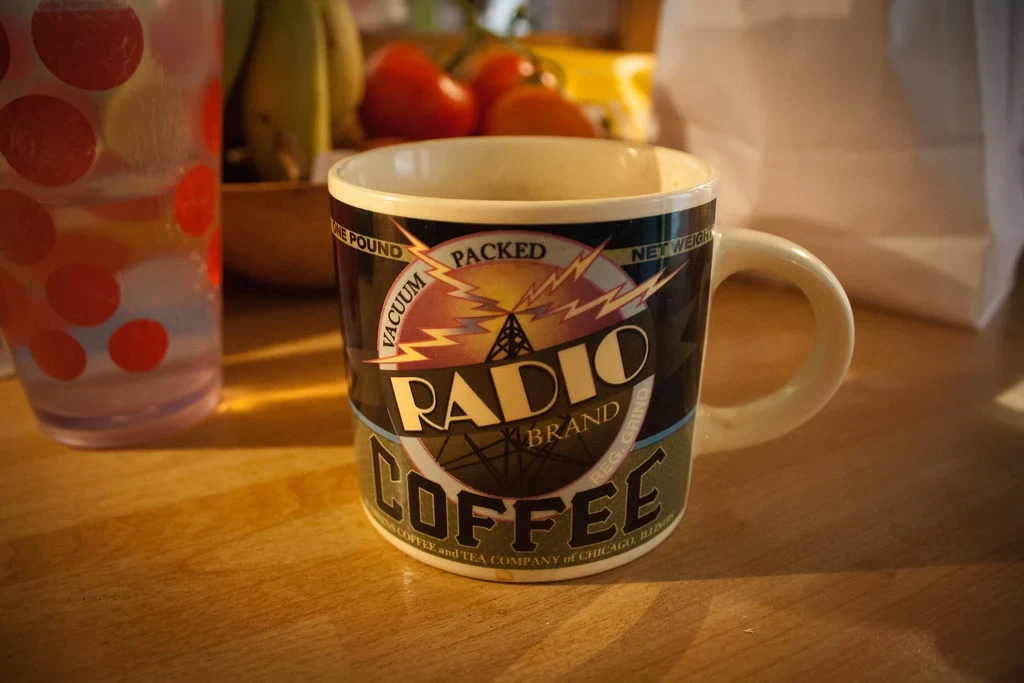
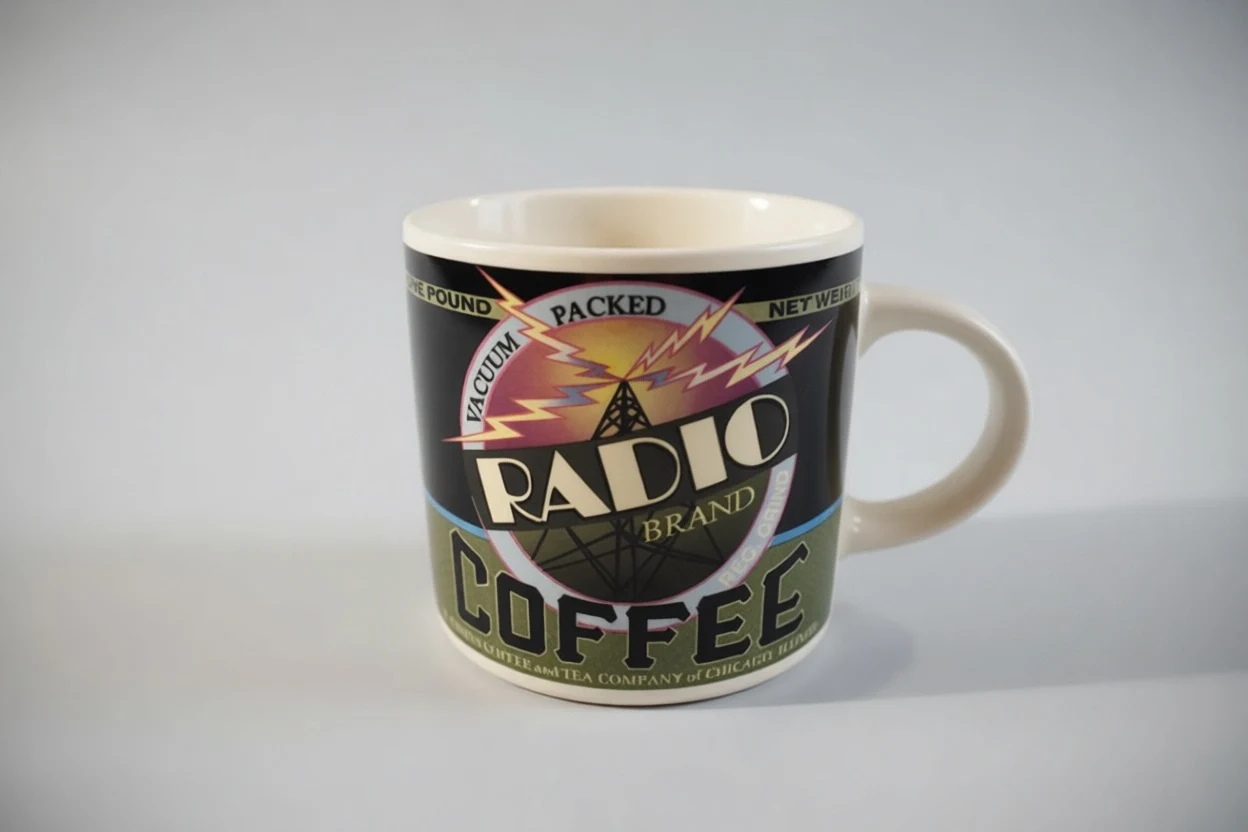
Background replacement
Studio background cleanup
Prompt: Replace the background with a clean light-gray studio backdrop and even softbox lighting. Keep the mug unchanged.
Pruna AI fast image editor
Use it for low-cost cleanup and iteration before reserving premium editors for the final selected image.
Your generated image will appear here.
Enter a prompt and click 'Generate Image' — or start from an example:
Examples
Drag the handle to compare each source and result, or open the viewer for a closer look.
Background replacement
Prompt: Replace the background with a clean light-gray studio backdrop and even softbox lighting. Keep the mug unchanged.
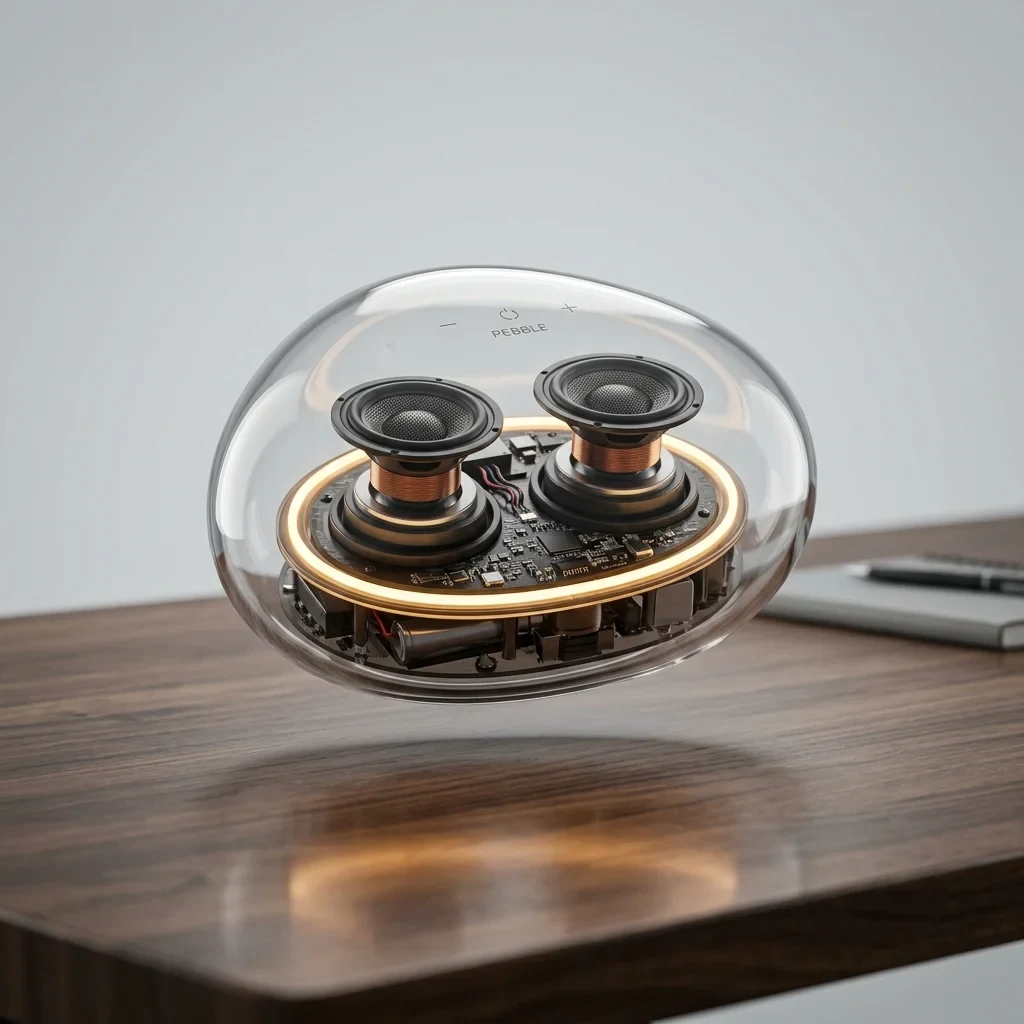
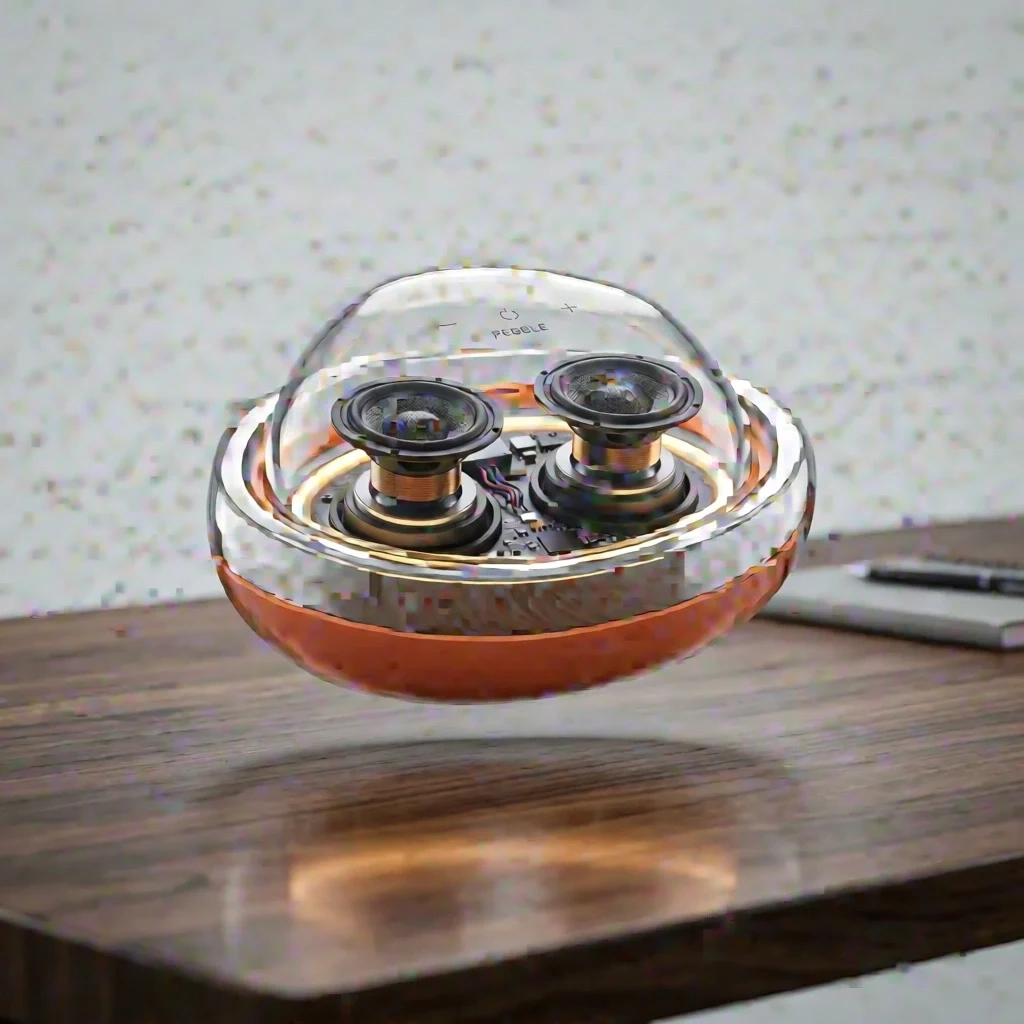
Four references
Prompt: Restyle the speaker using the terracotta, brushed-metal, and fabric references. Preserve the pebble shape, transparent shell, desk, and lighting.
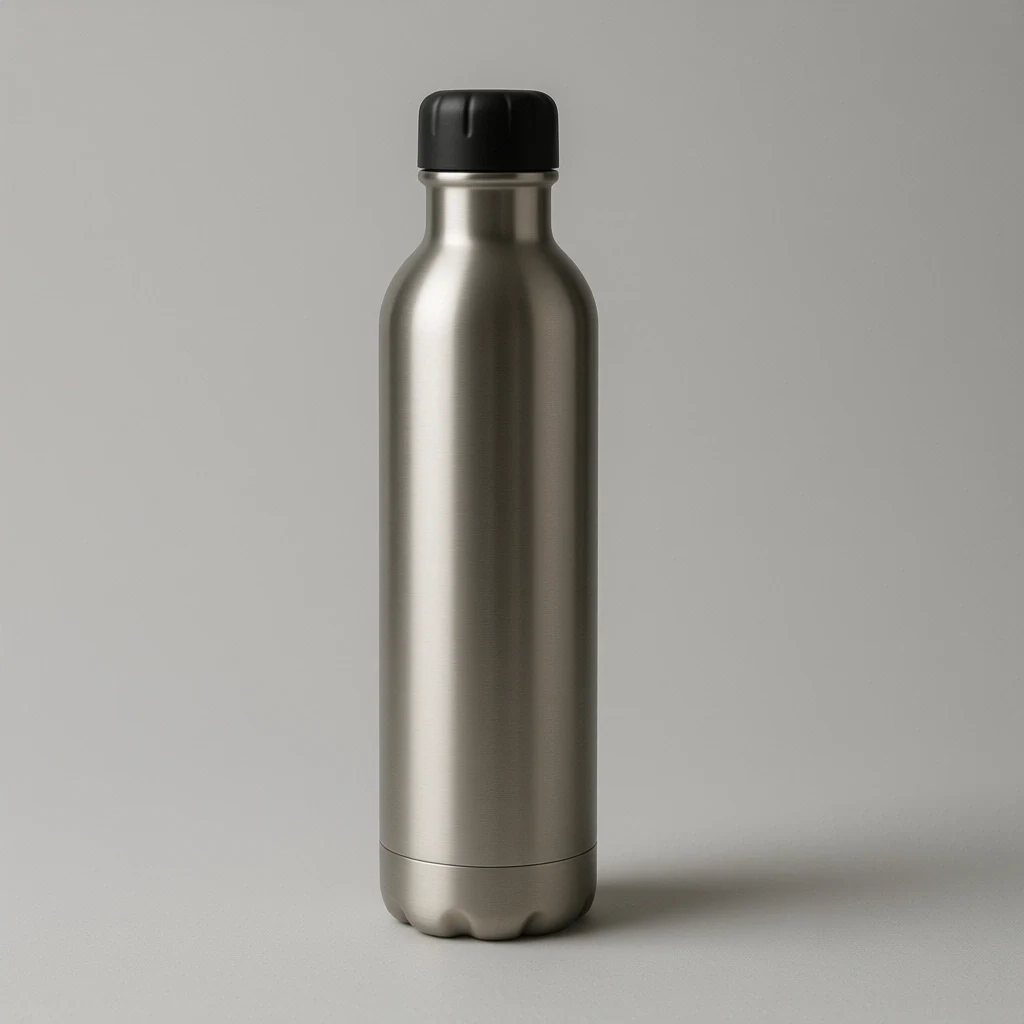
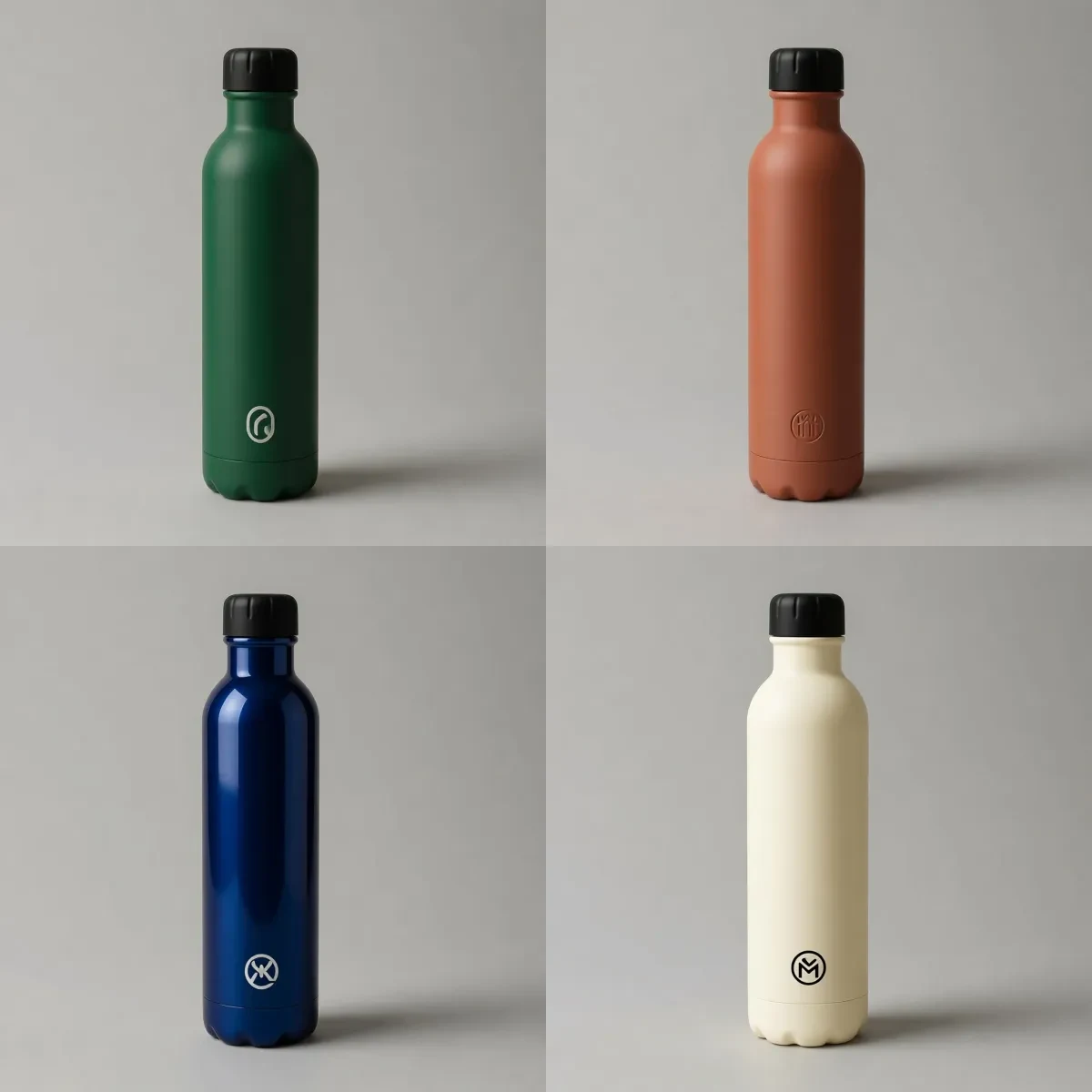
Product ideation
Prompt: Create matte forest green, matte terracotta, glossy midnight blue, and soft cream colorways while keeping the bottle shape, cap, background, and lighting consistent.
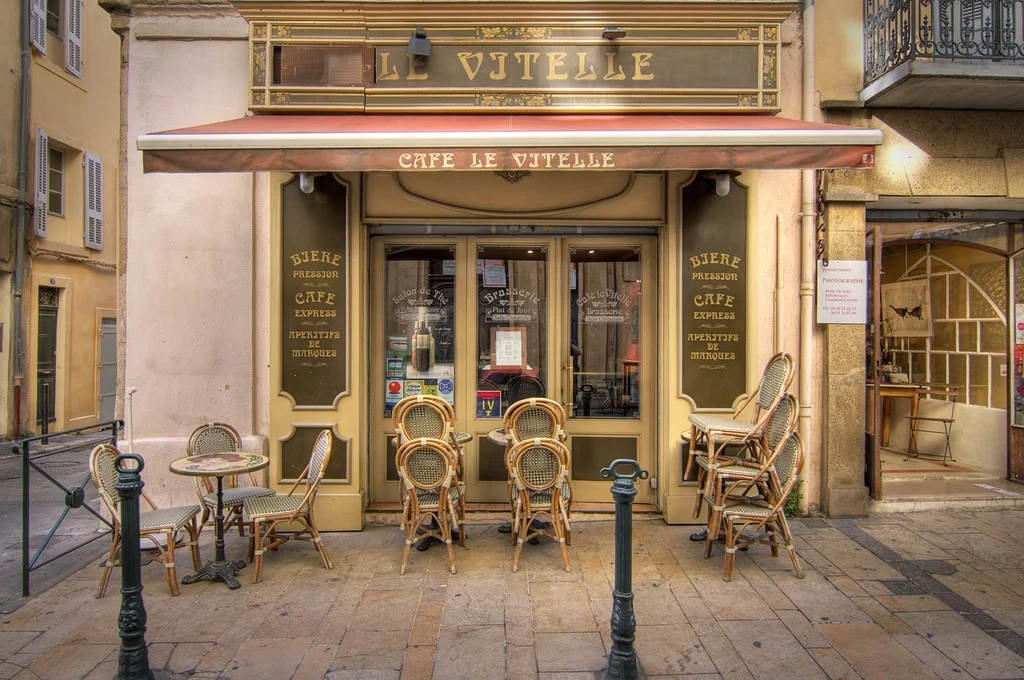
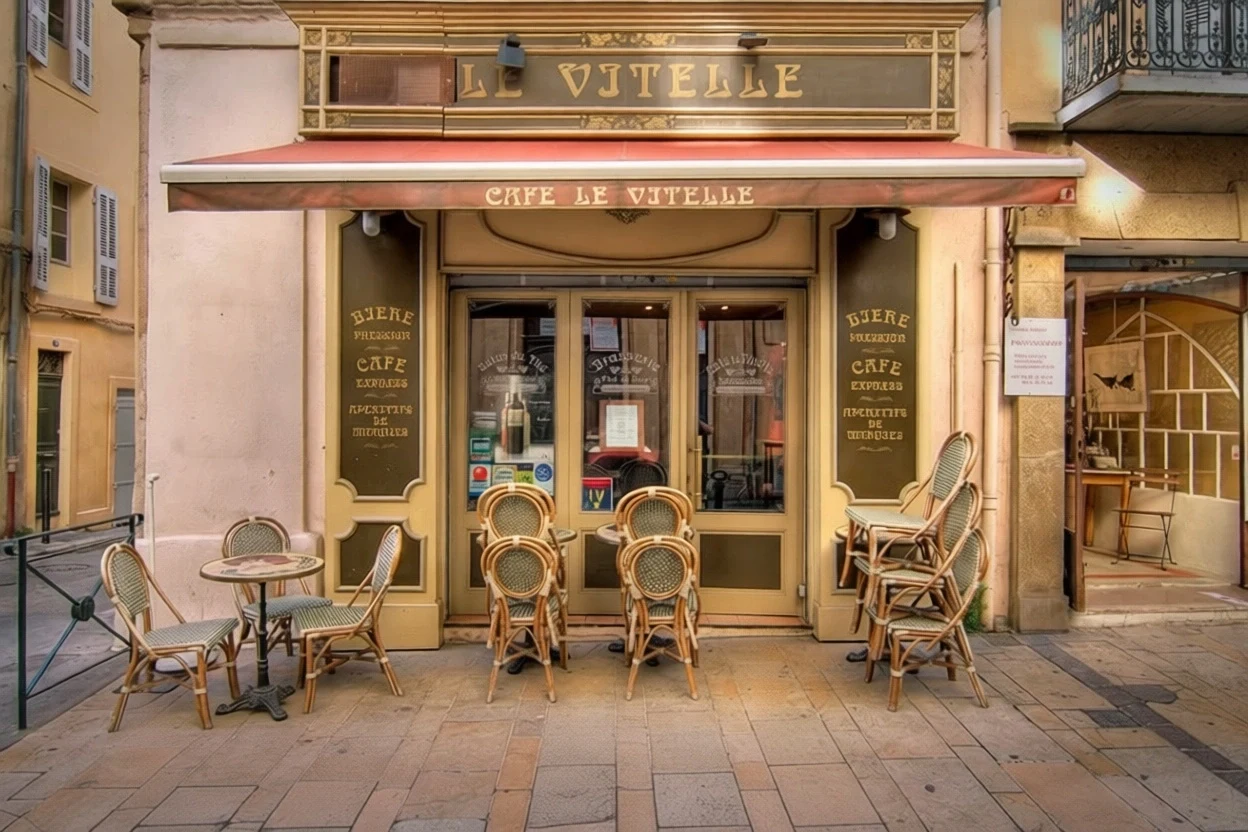
Object removal
Prompt: Remove the two dark metal bollards and rebuild the pavement where they stood. Keep the cafe front, chairs, lighting, and colors unchanged.
Model context
P Image Edit is a practical editor for simple production chores: cleanup, background replacement, colorways, product restyles, and foreground object removal.
It is not the place to ask for a complete campaign rewrite. It is the place to cheaply test whether a straightforward edit is worth keeping.
Model strengths
Use it for low-cost cleanup and iteration before reserving premium editors for the final selected image.
Prompt guide
Write the edit as a single practical instruction: remove, replace, recolor, relight, or restyle.
Name the product, person, or scene details that must not change.
For cleanup tasks, extra art direction often creates new differences you did not ask for.
Use P Image Edit to find a viable version, then use a stronger editor if final precision is required.
It is best for fast practical edits: background cleanup, simple restyles, color variants, product mockups, and object removal.
No. Use GPT Image 2 Edit or Qwen Image 2.0 Edit for text-sensitive changes.
Use one direct verb and one preservation instruction. Short prompts are usually better for simple fixes.
Use a premium editor when identity, typography, packaging, or final campaign quality matters.